Firebase Environment Manager
Firebase Environment Manager allows to define environments that control which Firebase App is being used by Firebase SDK in a Unity project. This allows developers to separate production configuration of Firebase from the development ones.
Overview
Firebase Environment Manager stores configuration files of Firebase for different environments and based on the active environment updates the Assets/google-services.json, Assets/GoogleService-Info.plist and StreamingAssets/remote_config_default.json.
Since the bundle id and other project metadata remain the same, builds can be created and uploaded to store without any changes to the release pipeline.
Warning
The Google Play Games Auth Provider only works with the primary Firebase project due to OAuth client restrictions. Using it with other Firebase projects will cause authentication failures.
Usage
Firebase Environment Manager can be accessed at .
Creating environments
To create an environment use the Create button. When creating a new environment it becomes an active environment.
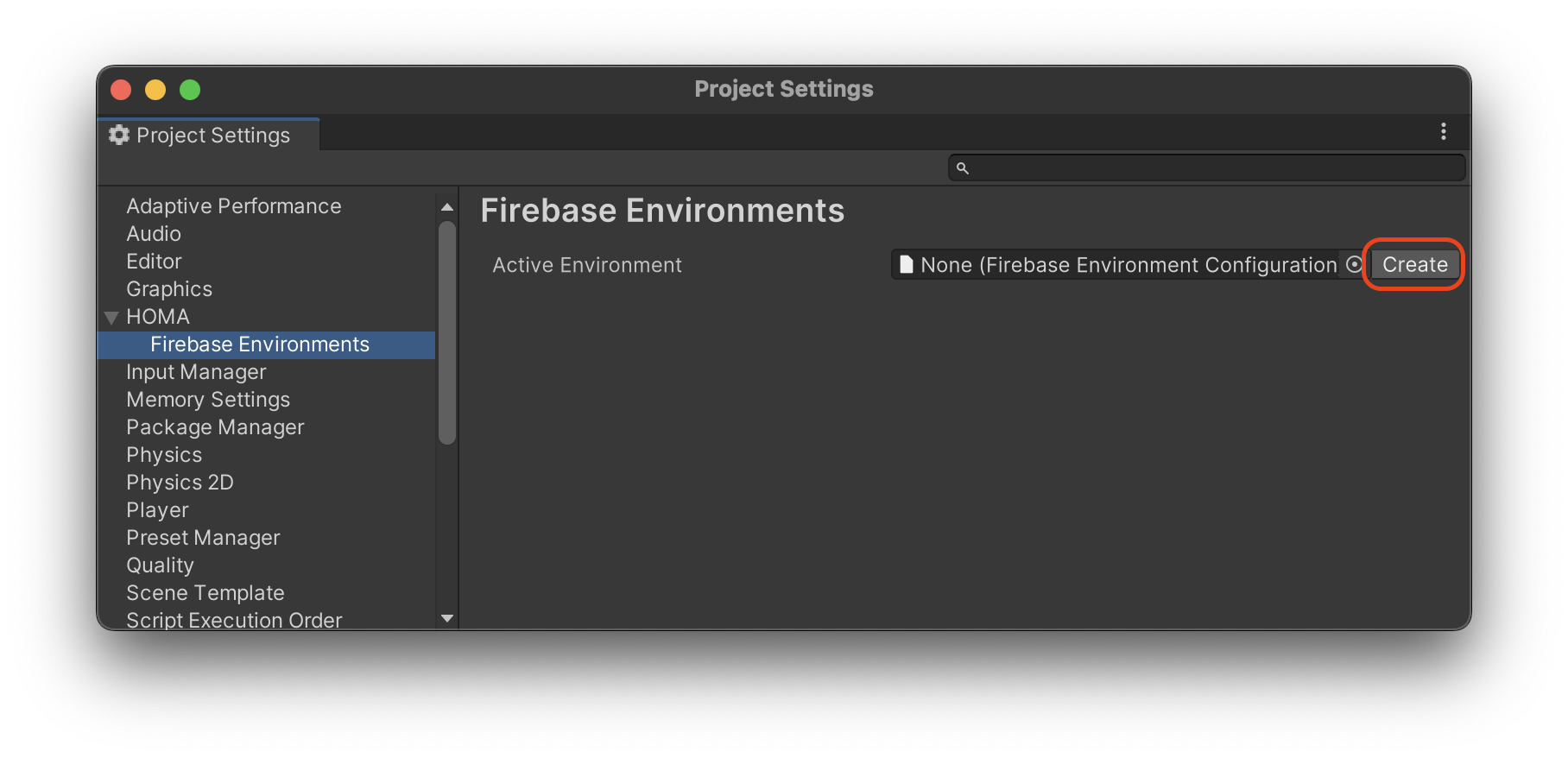
Environment definition requires three configuration files that need to be downloaded from Firebase Console.
google-services.jsonandGoogleService-Info.plist:
In the Firebase Console, go to Project settings, select the General tab, and look under the Your apps section to download these files.remote_config_default.json:
In the Remote Config section, open the ellipsis menu and press Download current config file button to download this file.
To import those files to the Firebase Environment Manager use the Import button. Do not add the aforementioned files into your Unity project.
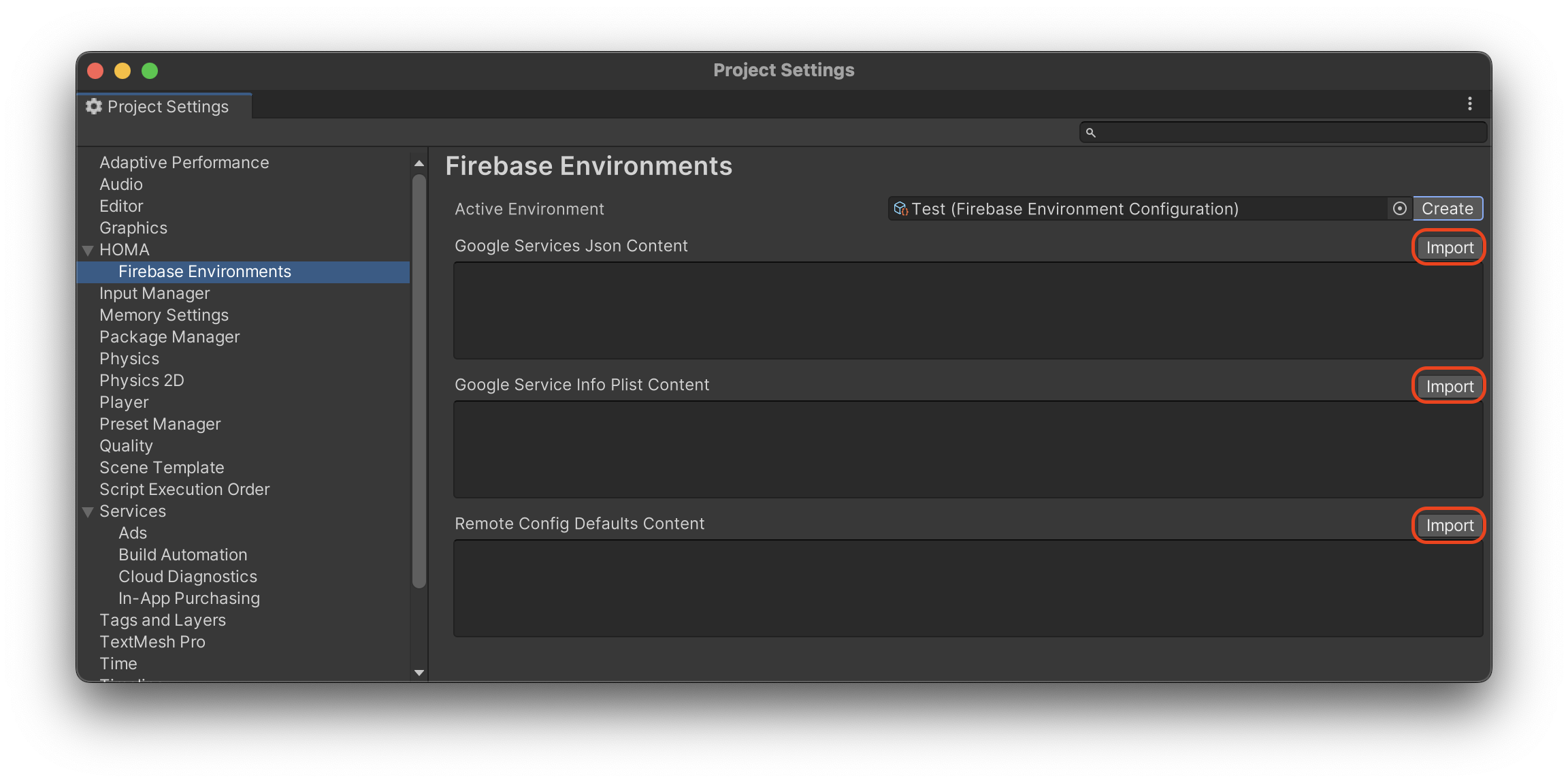
Creating an environment creates a EnvironmentName.asset file at Assets/Homa Games/Configuration/FirebaseEnvironments/. To change the environment name, rename the environment definition file.
Changing environments
To change an environment select a new Firebase Environment Config in the Active Environment field. The configuration window will show the contents of the configuration files for the active environment.
Changing the Active Environment field or any of the content fields automatically updates Firebase files in the project.
Moving current Firebase configuration to Firebase Environment Manager
Because the Firebase Environment Manager overwrites the Assets/google-services.json, Assets/GoogleService-Info.plist and StreamingAssets/remote_config_default.json files, this configuration needs to be migrated to the Firebase Environment Manager before adding other environments.